
In recent months, the digital landscape of Windows 11 has undergone a seismic shift. Microsoft has aggressively integrated its artificial intelligence assistant, Copilot, into virtually every corner of the operating system. From the taskbar and the Start menu to core utilities like Notepad, Paint, and the Office suite, AI is no longer an optional add-on—it is a foundational component of the user experience.
While Microsoft positions this as a leap toward "productivity-first computing," a significant segment of the user base feels differently. For many power users, developers, and privacy-conscious individuals, the constant presence of generative AI is not a convenience; it is a distraction and a privacy concern. The push toward a "Copilot-first" ecosystem has sparked a quiet rebellion among users who prefer to dictate their own toolset.
The good news is that while Microsoft has woven these features deeply into the fabric of Windows, they are not entirely inescapable. However, removing them requires a systematic approach. Much like the process of scrubbing unwanted advertisements from Windows, disabling these AI features involves navigating a labyrinth of submenus and settings. This guide provides a comprehensive roadmap for reclaiming your workspace.

The Chronology of the AI Invasion
The transformation of Windows into an "AI-first" platform did not happen overnight. It was a calculated, multi-phase rollout that began with the introduction of the Copilot sidebar.
- Phase 1: The Sidebar Integration: Microsoft initially introduced Copilot as a conversational sidebar, accessible via a dedicated icon in the taskbar. At this stage, it was largely optional and easily ignored.
- Phase 2: The Hardware Push: In early 2024, Microsoft announced the "Copilot Key," a physical button added to the keyboards of new laptops. This signaled a shift in strategy, aiming to bake AI directly into the hardware-software handshake.
- Phase 3: Deep System Integration: With the release of major 2024 and 2025 updates, features like "Windows Recall," "Click To Do," and deeper integration into native apps like Notepad and Paint were deployed. These updates moved AI from being a passive helper to an active observer of user activity.
- Phase 4: The Pushback: As the prevalence of these tools grew, so did the friction. Privacy advocates raised alarms over features like Recall, which periodically captures screenshots of the user’s activity, leading to intense scrutiny and subsequent pledges from Microsoft to make these features strictly "opt-in."
Supporting Data and User Sentiment
The sentiment surrounding this transition is polarized. According to recent industry surveys, while enterprise users often cite AI as a "time-saver" for summarization and data entry, individual home users frequently report "interface clutter."
Data indicates that power users—specifically those in creative, technical, or research fields—are the most likely to seek methods to disable AI features. The primary concerns cited in user forums and tech-support communities include:
- Privacy: Specifically regarding the local storage of "snapshots" used by features like Recall.
- Resource Consumption: The background processes required to keep AI models "ready" can lead to higher memory usage and potential battery drain on mobile devices.
- UI Distraction: The constant suggestion of "AI actions" in context menus and toolbars interrupts traditional workflows.
Reclaiming Your Keyboard: Remapping the Copilot Key
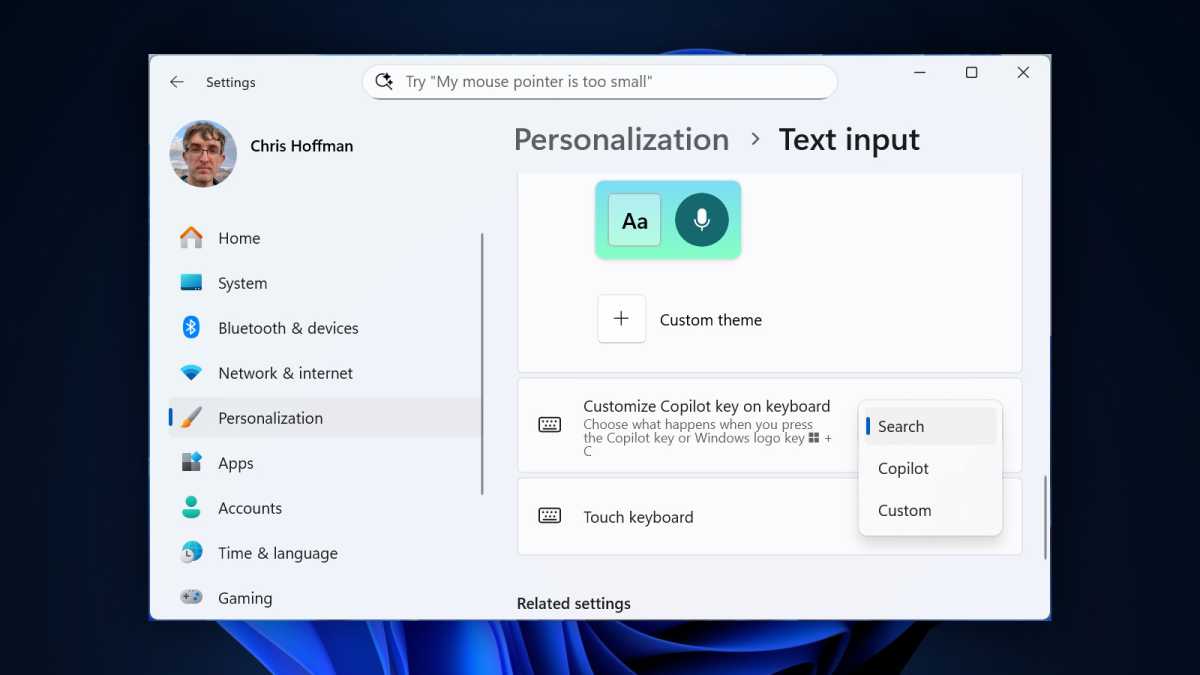
For those who purchased a device with the dedicated Copilot key, the button may seem like an permanent reminder of Microsoft’s design choices. While you cannot physically change the icon on the key, you can change its function.
Navigate to Settings > Personalization > Text Input. Here, you will find a configuration option labeled "Customize the Copilot key on the keyboard." If you prefer a utility-focused approach, you can reassign the key to trigger the standard Windows Search function. Alternatively, you can use third-party tools like Microsoft’s own PowerToys (Keyboard Manager) to remap the key to perform any custom action, such as launching a script or opening a specific application, effectively neutralizing the AI-focused hardware mandate.
Taskbar Cleanup and Autostart Management
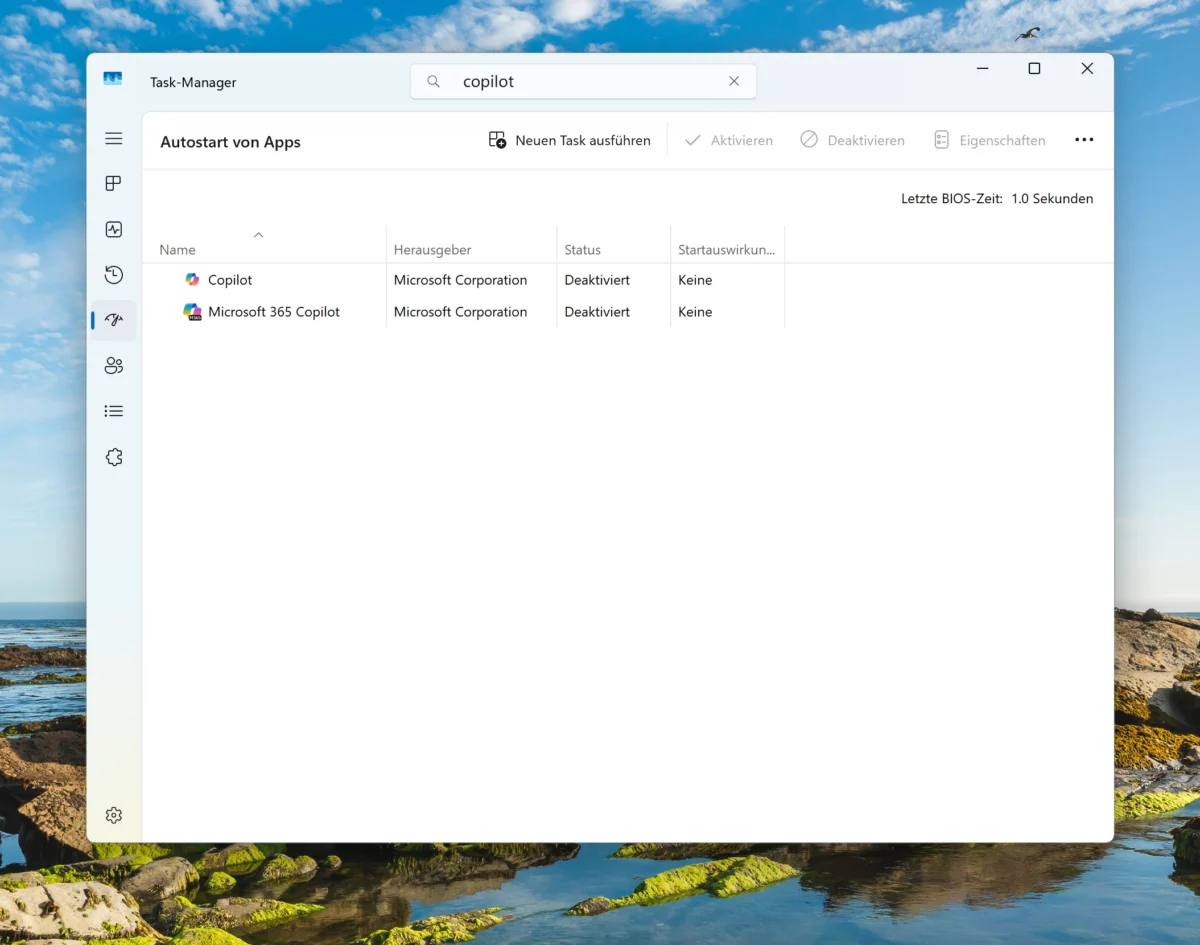
Windows 11 currently features two distinct instances: the standard "Copilot" and "Microsoft 365 Copilot." For many, having two icons cluttering the taskbar is a point of frustration.
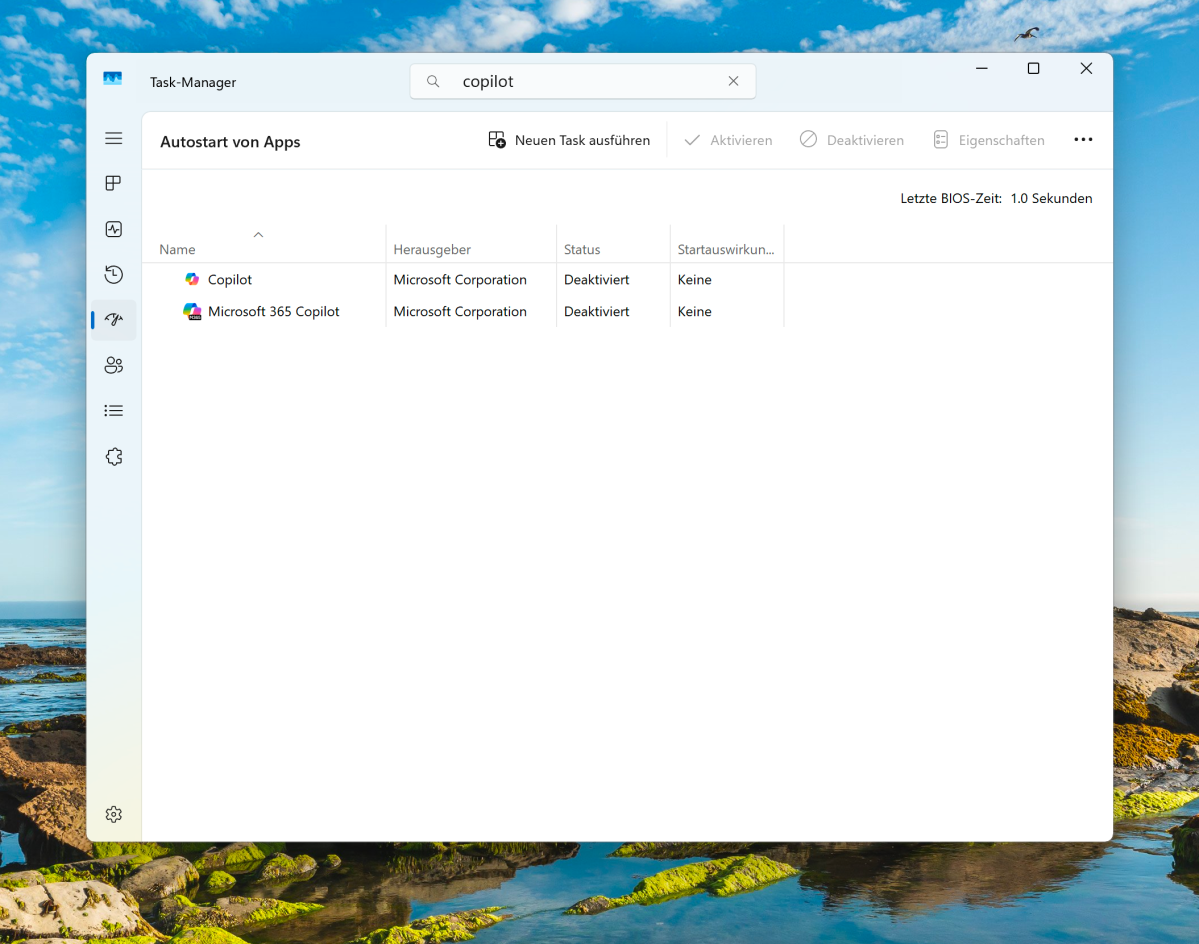
To stop these from running at startup:
- Press Ctrl + Shift + Esc to open the Task Manager.
- Navigate to the Startup apps tab in the sidebar.
- Locate "Copilot" and "Microsoft 365 Copilot."
- Right-click each and select Disable.
If you wish to remove them entirely, you can simply right-click the Copilot app in the Start menu and select Uninstall. If you ever change your mind, these applications are readily available in the Microsoft Store for a quick re-installation.
Managing AI in the File Explorer and Office Suite
The integration of "Ask Copilot" into the right-click context menu of the File Explorer can make simple file operations feel cluttered. By uninstalling the primary Copilot app, these context menu entries are typically removed automatically. For those who need to keep the app but want a cleaner right-click menu, advanced Registry edits can be used to block the Shell extension, though this should be performed with caution.
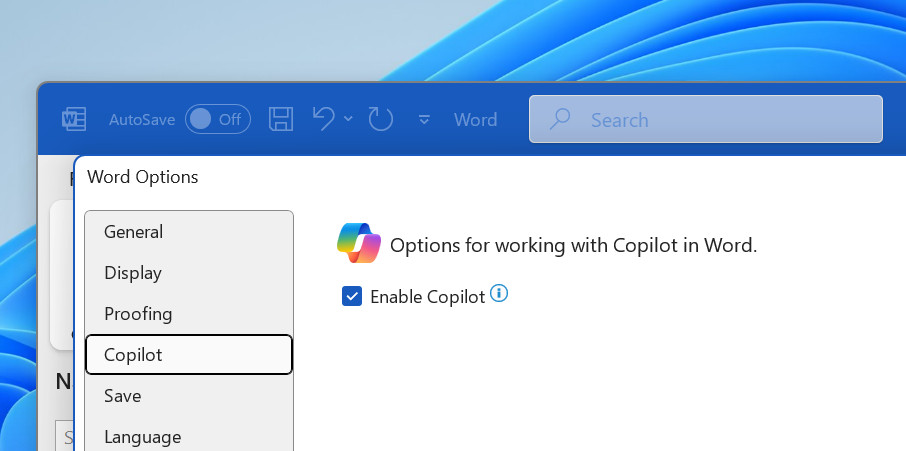
Within Microsoft Office (Word, Excel, PowerPoint), the AI integration is managed via the app’s internal settings.
- Go to File > Options.
- Select the Copilot tab in the sidebar.
- Toggle off "Enable Copilot."
By doing this, you reclaim the interface for your own writing and data analysis, and you may even be able to downgrade your Microsoft 365 subscription to a plan that does not include these advanced AI features, resulting in a lower monthly cost.
Silencing AI in System Utilities and Browsers
Microsoft has even introduced AI to its simple tools, such as the Notepad (Editor). If you find the AI summary and text-generation features unnecessary for a basic text editor:
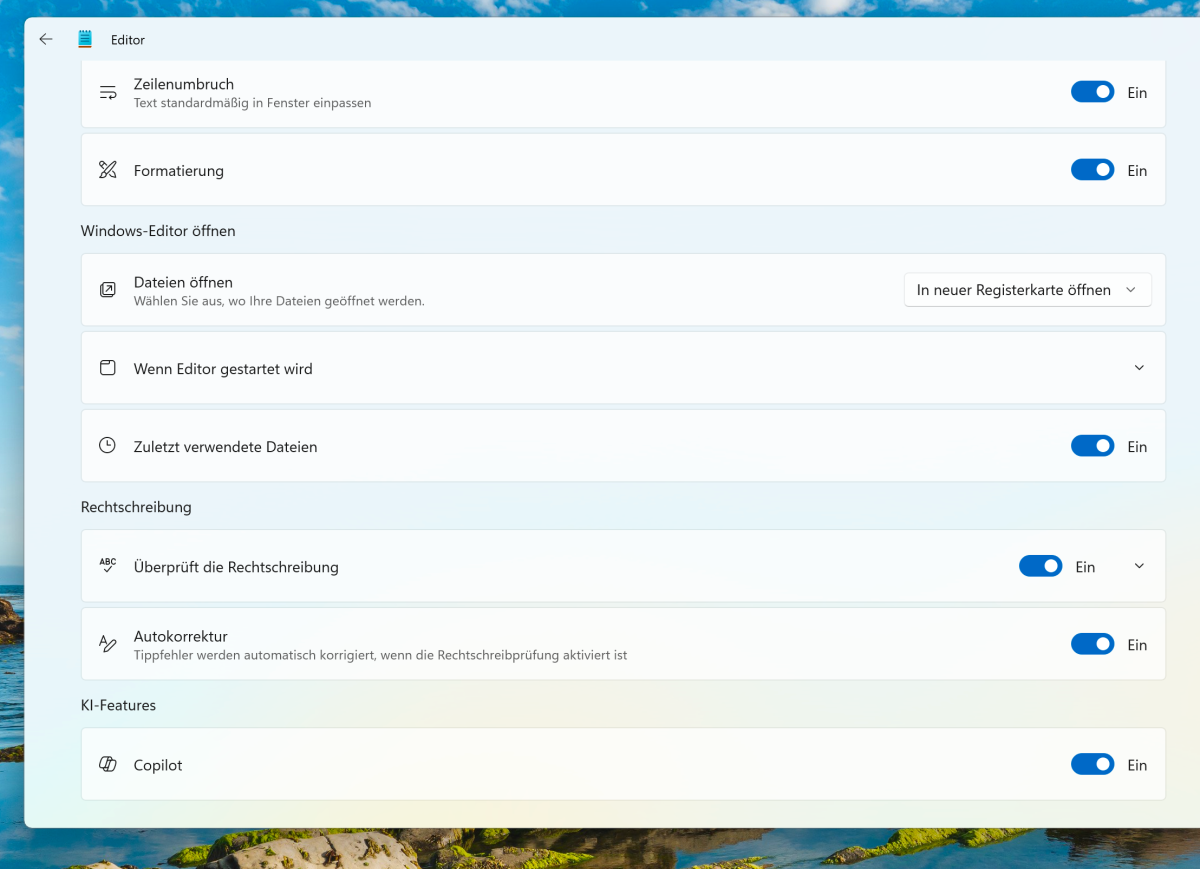
- Open Notepad.
- Click the Gear icon (Settings) in the top right.
- Scroll down and toggle off the Copilot integration.
Browser-Level Disabling
Modern web browsers have become the primary battleground for AI.
- Google Chrome: Navigate to the Three-dot menu > Settings > AI Innovations to manage features.
- Microsoft Edge: Go to Three-dot menu > Settings > AI Innovations. Additionally, to hide the icon from the toolbar, navigate to Appearance > Copilot and sidebar > Copilot and disable the "Show Copilot button" toggle.
- Mozilla Firefox: For those who prefer a more manual approach, type
about:configin the address bar. Search forbrowser.mland toggle the relevant values tofalse.
Addressing High-Level Features: Recall and Click To Do
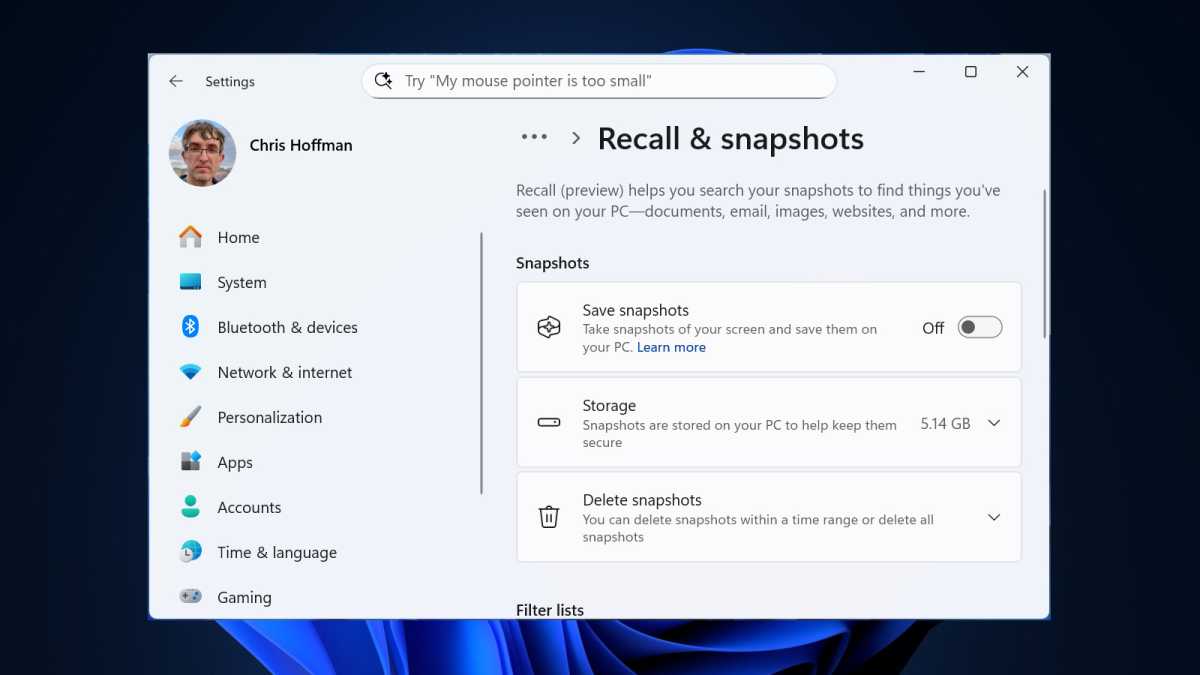
The most controversial feature, Windows Recall, is intended for Copilot-certified PCs. If you have this enabled, it records your screen activity to create a searchable history. To ensure your privacy:
- Go to Settings > Privacy & security > Recall.
- Toggle off "Save snapshots."
- Use the "Delete snapshots" button to purge any existing data from your drive.
Similarly, "Click To Do," which offers context-aware suggestions, can be disabled via Settings > Privacy & security > Click To Do. This feature, while designed to predict your next action, often adds visual noise to the desktop that many users prefer to be without.
Implications and Official Responses
Microsoft’s official stance remains that these features are optional and designed to provide "value-added" services to the average consumer. In response to recent criticism, the company has begun to implement more granular control, acknowledging that "one size does not fit all" when it comes to AI.
The implication of this trend is clear: Microsoft is betting its future on AI. However, by allowing users to toggle these features off, they are effectively admitting that the value of AI is not universal. For the user, the lesson is that while the operating system is increasingly "opinionated" about how you should work, the tools to regain a "classic" desktop experience remain available.
Ultimately, your digital workspace should be a tool that serves your needs, not a platform that dictates your workflow. Whether you embrace the AI revolution or prefer to keep your computing environment simple and manual, the power to choose should always remain in your hands.