
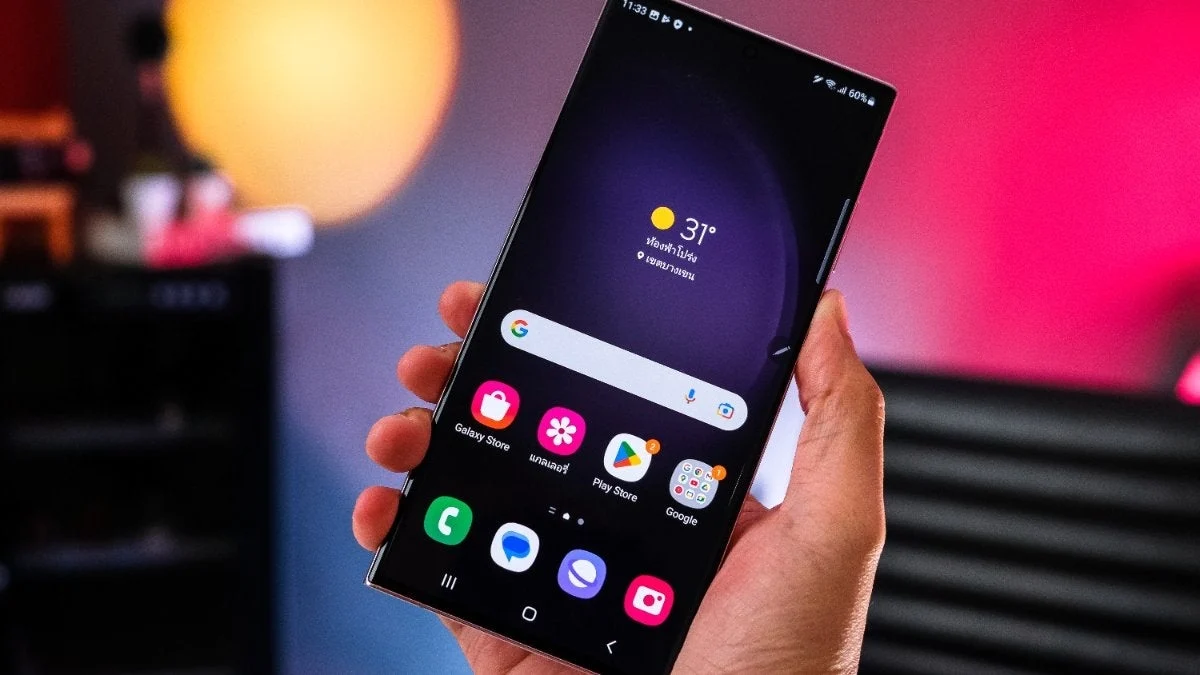
For years, Samsung Galaxy users have looked with envy at devices from competitors like Xiaomi, which have long integrated a native network speed indicator into their status bars. While Samsung’s One UI has been lauded for its deep customization, aesthetic polish, and feature-rich environment, this specific tool—a simple, real-time readout of data throughput—remained curiously absent.
That is finally changing. With the upcoming rollout of One UI 9, based on Android 17, Samsung is addressing one of the most persistent requests from its power-user community. However, in true Samsung fashion, the implementation is not a simple toggle in the primary settings menu. Instead, it requires a delve into the ecosystem’s advanced customization hub.
The Evolution of the Network Indicator
The demand for a built-in network speed indicator stems from a desire for transparency. In an era where streaming 4K video, cloud gaming, and large-scale data synchronization are commonplace, understanding exactly how much bandwidth a device is consuming at any given moment is invaluable.
Historically, Galaxy users seeking this information were forced to rely on third-party applications from the Google Play Store. These apps often suffered from battery drain, intrusive advertising, or inconsistent performance, as they were required to run as persistent background services to "hook" into the system’s network traffic data. By integrating this directly into the One UI 9 kernel, Samsung is providing a lightweight, power-efficient, and accurate alternative that does not compromise system integrity.
Chronology of the Development
The path to this feature has been a gradual one, mirroring the broader development cycle of Android 17:
- Early 2026: Rumors circulate within the tech community regarding a "system-level performance suite" for the upcoming Galaxy S26 series.
- May 2026: Samsung announces the preliminary roadmap for One UI 9, focusing on granular status bar control.
- June 2026: The official Beta program launches in select regions, including Germany, for Galaxy S26 owners. Early testers discover the "hidden" network speed toggle within the Good Lock framework.
- July 2026 (Projected): The official stable release of One UI 9 is scheduled for rollout across the global flagship fleet.
How to Access the Feature: A Step-by-Step Guide
While the feature is native to the system architecture, Samsung has opted to house it within its Good Lock ecosystem. Good Lock is the company’s powerful suite of modular apps that allows for deep UI customization.
To enable the network speed display once the One UI 9 update is installed, follow these steps:
- Launch Good Lock: Ensure you have the latest version of the Good Lock app from the Galaxy Store.
- Download Quick Star: Within the "Life Up" tab of Good Lock, locate and install the "Quick Star" module. This module is specifically designed for tweaking the status bar and Quick Panel.
- Navigate to Visibility Settings: Open Quick Star and select "Visibility of Indicator Icons."
- Activate the Monitor: Within this menu, toggle the "Network Speed" switch to "On."
- Placement: The indicator will instantly appear in the status bar, typically situated near the Wi-Fi or cellular signal strength icons.
The readout provides real-time data in Kilobytes (KB/s) or Megabytes (MB/s) per second. Initial performance benchmarks from the Beta indicate that the tool is highly precise, showing a negligible impact on system resources compared to third-party alternatives.
Why This Matters: Diagnostics and Data Management
The utility of a network speed indicator extends far beyond simple curiosity. For the average user, it serves as a critical diagnostic tool.
Identifying Background Activity
Have you ever noticed your device becoming sluggish or your battery draining rapidly while the phone is seemingly idle? A network speed indicator can reveal if a background application is performing a massive, unauthorized data sync or if a system update is downloading in the background. If you see high upload/download speeds while your phone is supposedly inactive, you can immediately identify the culprit through the battery or data usage settings.

Optimizing Connection Stability
For gamers or remote workers relying on mobile hotspots, the ability to see a drop in speed in real-time allows for immediate intervention—such as switching from 5G to Wi-Fi or moving to a location with better reception—before a connection drop results in a disconnected meeting or a lost match.
Data Cap Management
For users with limited data plans, seeing the "burn rate" of their data in real-time can foster more conscious usage habits. It provides a visual cue that helps distinguish between low-bandwidth tasks (like text messaging) and high-bandwidth tasks (like video streaming).
Official Stance and Future Implications
Samsung has remained relatively quiet regarding why this feature was relegated to the Good Lock module rather than being placed in the main "Connections" or "Display" settings. Industry analysts suggest this is a deliberate strategy to maintain the "cleanliness" of the core Android experience for casual users, while reserving more granular, "geeky" features for the power users who frequent the Good Lock store.
There is also speculation that this move is part of a larger trend of modularizing Android. By keeping non-essential UI elements in separate modules, Samsung can update individual parts of the interface without needing to push a full firmware update to every device, thereby streamlining the maintenance cycle for the vast Galaxy lineup.
Implications for the Android Ecosystem
Samsung’s decision to adopt this feature highlights a broader shift in the mobile industry. As hardware specifications across flagship devices converge, software experience has become the primary differentiator. Features that were once considered niche—such as per-app volume control, advanced RAM management, and granular status bar monitoring—are becoming standard expectations.
Furthermore, this move puts pressure on other manufacturers. With Samsung, the market leader, now embracing the network speed monitor, it effectively sets a new baseline for what a premium user experience should entail. Competitors who do not offer this natively may find themselves at a disadvantage, as users continue to prioritize devices that offer "out-of-the-box" transparency regarding their device’s performance.
Conclusion: A Small Change with Large Impact
While the addition of a network speed indicator may seem like a minor aesthetic update to the casual observer, for the power user, it represents a significant step forward in device control. It is a testament to Samsung’s willingness to listen to its user base, even if the implementation remains rooted in their modular customization philosophy.
As we approach the July 2026 launch of the stable One UI 9 release, users should ensure their Good Lock apps are updated and ready. For those currently on the beta, the feedback loop remains active, and there is hope that Samsung might eventually integrate this feature directly into the main settings menu in future iterations of the OS. Until then, the path through Quick Star remains the gold standard for Galaxy owners looking to keep a watchful eye on their digital connection.
Note: This article is an update to a report originally published on June 15, 2026. As the rollout of One UI 9 progresses, further updates regarding specific device compatibility and potential UI refinements will be provided.